A Quicker, Calmer Way to Add Your Measurements
Taking your measurements should feel like a few calm minutes for yourself, not a chore. So we’ve redesigned the screens you use to add them, to make each step quicker, clearer and a little kinder.
Two ways to enter a number
Everyone has their own way of doing things, so you can now choose how you enter each measurement.
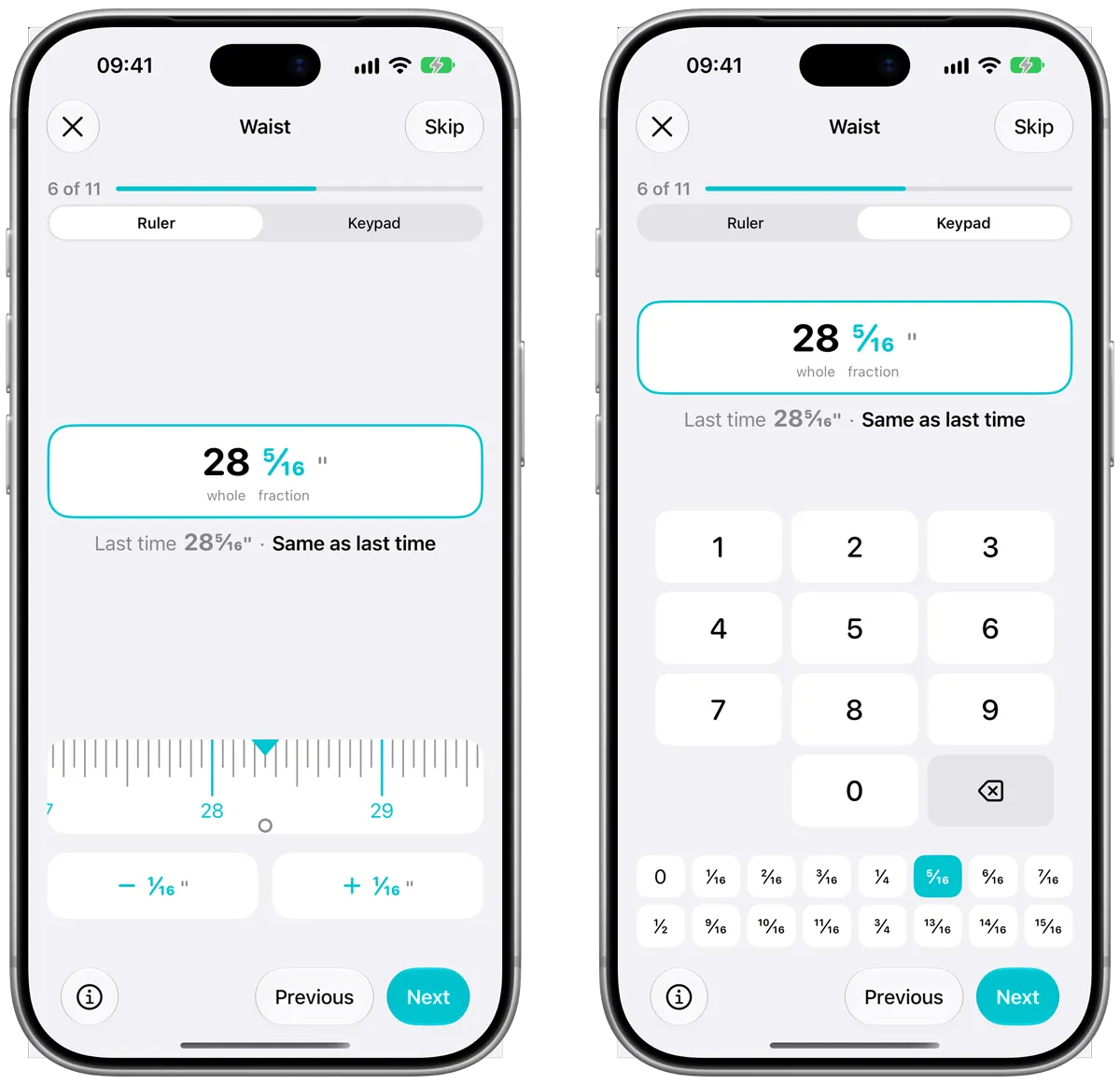
- Keypad lets you type the number straight in. If you measure in inches, tap a fraction chip like 2/16 instead of scrolling a wheel.
- Ruler lets you slide a tape measure to your number. Use the + and − buttons to nudge it by one mark at a time.
Switch between them at the top of the screen. We’ll remember your choice for next time.
Your very first entry opens on the keypad, because there’s nothing to compare against yet. After that, the ruler opens right on your last value, so a small change is just a small slide.
See how far you’ve come, step by step
Each measurement now shows what you recorded last time, and how today compares. It’s a small thing, but those little changes add up, and it’s lovely to notice them as you go.
A progress bar at the top shows how far through you are, like “6 of 11”, so you always know where you are.
Skip what you’d rather not measure today
Some days you don’t have time to measure everything, and that’s completely fine. Every tape-measure step now has a Skip button in the top right.
Tap it and Progress keeps your last value for that measurement and moves you on. If you’ve already changed the number, we’ll check with you before throwing it away. Done is better than perfect, and every entry you add is still progress.
New to Progress? Download it from the App Store and you can try both modes with your very first entry.
Clear help on how to measure
Not sure exactly where to measure your waist or hips? Tap the info button at the bottom of any tape-measure step. You’ll see an illustration and a short, friendly guide, so you measure the same spot every time. That consistency is what makes your results easy to trust.
On an iPad held on its side, or an open iPhone Duo, there’s room to show the guide right next to the controls, so you don’t need to tap anything.
Your results, easier to read
Once you’ve saved your entry, the Results tab has had a refresh too. Each month sits in its own card, and every entry shows your main number nice and large, with a small pill showing how much it changed.
The pills follow your goal. If you’re working towards a lower number, a drop shows in green. If you’re building up, a rise shows in green instead. You’ll never see red, because a change in the “other” direction isn’t a failure. It’s just part of the journey.

The same feel everywhere
You’ll find the same keypad and ruler when you edit an entry from Results, and when you set your goal in Me. Learn it once and it works the same way wherever you are.
Give it a try
Next time you add your measurements, try both modes and see which one feels right for you. We hope it makes those few minutes feel a little easier, so you can spend less time tapping and more time celebrating how far you’ve come.