
Make Progress Yours: Theme Colours and Dark Mode
You can now give Progress a look that feels like yours. Choose a theme colour you love, and decide whether the app is light, dark or follows your iPhone. Both live in one place, and they only take a few seconds to set.
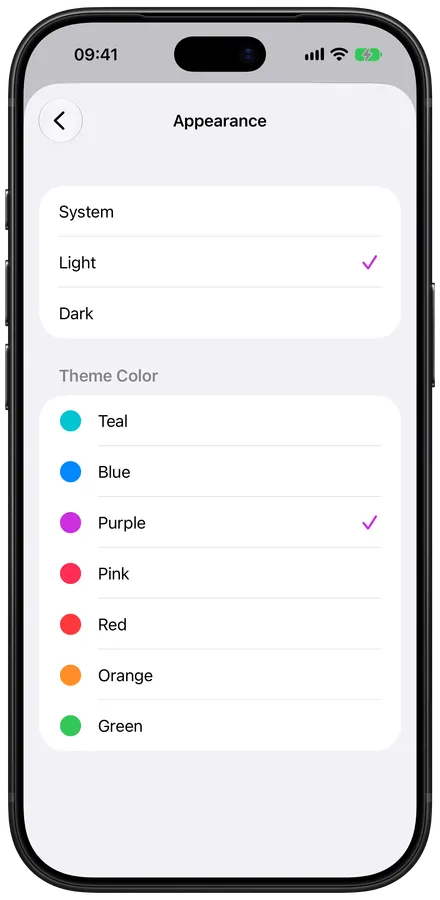
Where to find it
- On My Progress, tap the person icon at the top right to open Me.
- Tap Appearance.
- Choose System, Light or Dark.
- Choose a theme colour.
That’s it. Progress changes straight away, so you can try a few and see which one feels right. We’ll remember your choice for next time.
Light, Dark or System
System follows your iPhone, so Progress turns dark in the evening if your phone does. If you’d rather it always looked the same, pick Light or Dark and it stays that way, whatever your iPhone is set to.
Seven theme colours
There are seven to choose from: Teal, Blue, Purple, Pink, Red, Orange and Green. Your colour takes over the buttons, the tab bar, the steps for adding an entry and the cards on My Progress, so the whole app feels a little more like yours.
Teal is the colour Progress has always had. It keeps the purple goal and mint cards you know, so if you like things just as they are, there’s nothing to change.

Appearance is there for everyone, so if you haven’t tried Progress yet, download Progress from the App Store and make it yours from day one.
A small thing, maybe, but opening an app that feels like yours makes checking in that bit more inviting. And every check-in is a step forward.
